Open the presentation page
In the “Presentations” list, click the presentation — the “Download” section with the “PPTX” and “PDF” tiles is on the right. PDF is on every plan: on Free every page carries the JamPres mark, from the Base plan it doesn't. The mark depends on the plan of the presentation's owner.
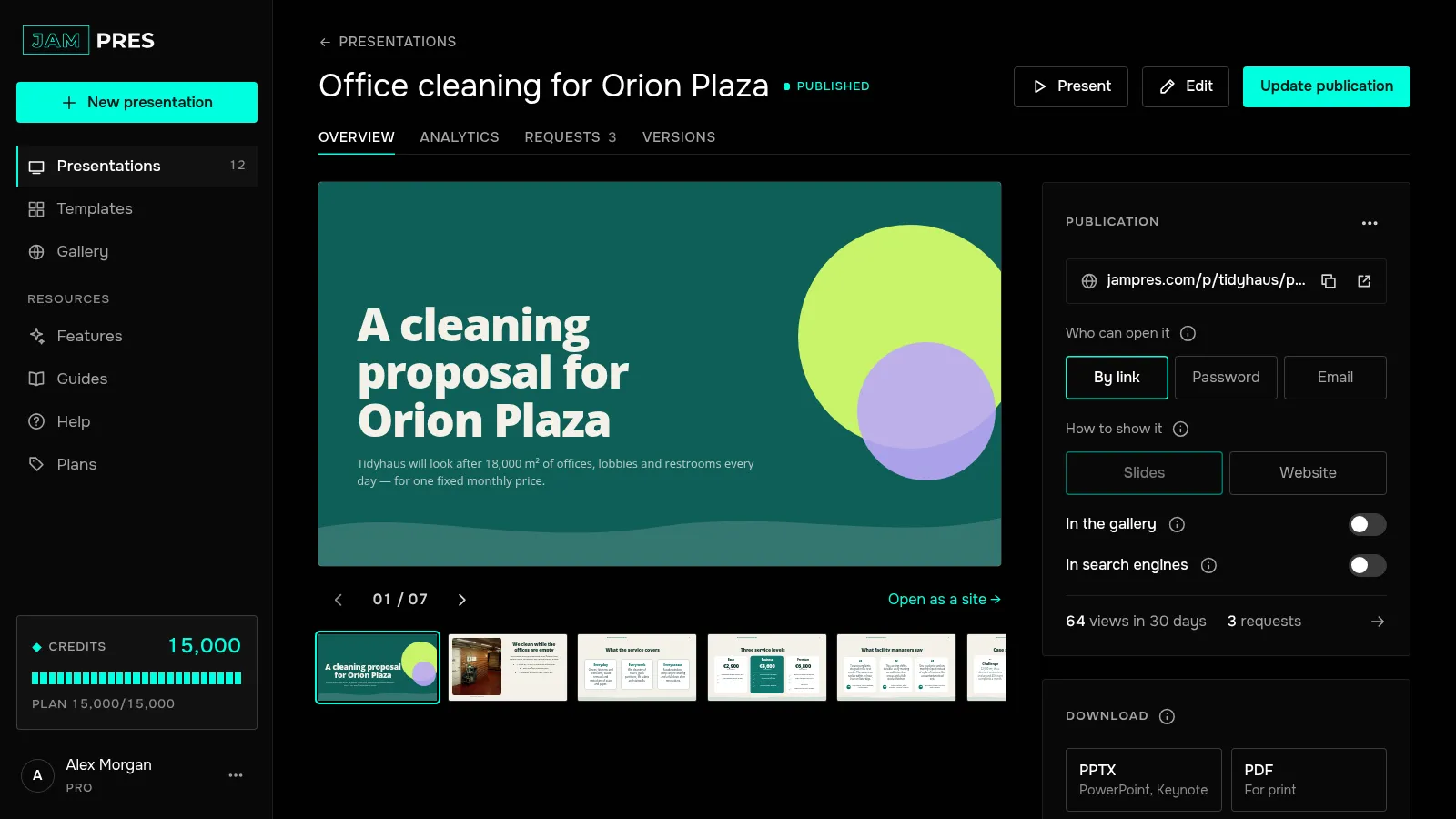
Click “PDF”
A new tab opens with all the slides. The browser's print dialog appears by itself once the fonts have loaded. If it doesn't, press Ctrl+P (⌘P on a Mac).
Save the file
In the print dialog choose “Save as PDF”, set margins to none and turn on background graphics. Each slide lands on its own page. Text and shapes in the PDF are vector, so they stay sharp at any zoom, and the fonts are the same as on the website.
Speaker notes don't go into the PDF — they're only in the PowerPoint file.
4K images on Pro
The slides themselves are vector, so 4K is about photos. On Pro, stock photos go into the PDF and PPTX 3840 pixels wide — enough for a 4K screen and for print. On Base they're 2560 pixels wide, with room to spare for Full HD. Your own uploads go into the file at their original size on any plan, so for a sharp image on a 4K screen upload a large original.
On Base there's a “4K” button with the PRO label under the tiles — it opens the window for moving to Pro.
How to download a presentation as PDF and what 4K gives you
Click “PDF” under “Download” and save the file from the print dialog. On Free the PDF carries the JamPres mark, from the Base plan it doesn't; on Pro, stock photos go into the files in 4K.
On every plan
Was this article helpful?
Didn't find the answer?
Ask the JamAI assistant in the chat on this site or email us — we reply within one business day.