Open “Plan and billing”
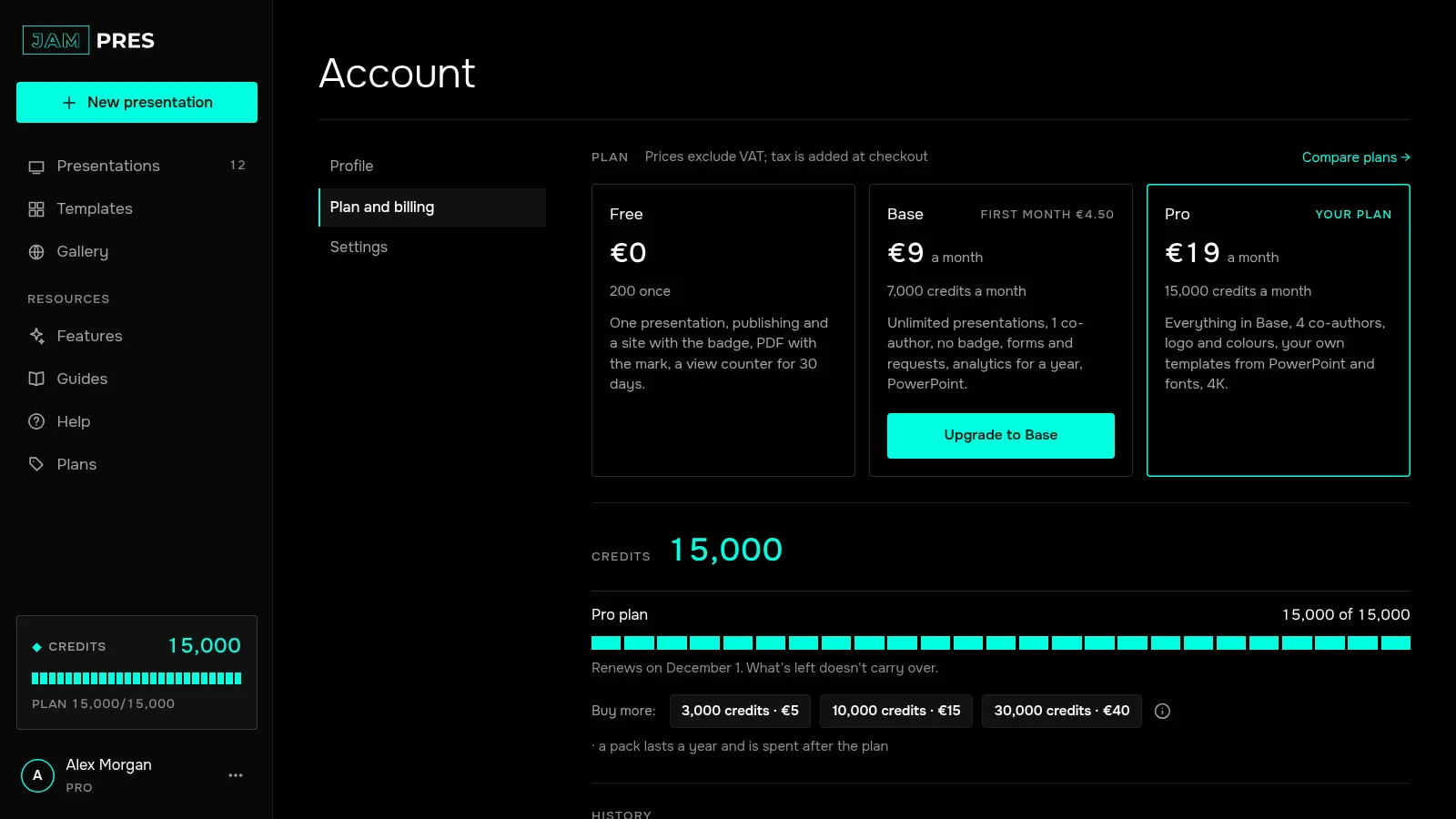
In the dashboard, click your name in the left panel to open “Account”. Go to “Plan and billing”: it shows your subscription, the plan cards and your credits.
Choose a plan and a period
Click “Compare plans” next to the “Plan” heading, or “Upgrade to Pro” on a plan card. On the “Compare plans” page, pick “Monthly” or “Yearly” at the top.
Subscribe if you're on Free
Tick the consent box: the subscription starts right away, and if you withdraw within 14 days you pay only for the days used. Click “Subscribe” to open the Stripe checkout page, where tax is added. After you pay, the plan switches on in a few seconds.
Switch if you already have a subscription
From Base to Pro, or from monthly to yearly, use “Switch now”. The new plan applies at once, and Stripe charges the difference for the rest of the period. If your bank asks you to confirm the payment, a Stripe invoice page opens, and the plan changes once it's paid.
From Pro to Base, use “Switch on” with the date your period ends. Pro stays until that date, and Base starts with the next payment. Changed your mind? Click “Stay” on the Pro card. You can't go from yearly to monthly straight away: cancel the yearly subscription and subscribe monthly after the paid year ends.
Every switch needs a second click — “Confirm”. If you had cancelled the subscription, changing the plan undoes the cancellation.
Move to Free
There's no separate button: cancel the subscription, and the account moves to Free when the paid period ends. Everything you've published stays. See how to cancel a subscription.
How to change your JamPres plan
An upgrade applies at once, with a charge for the rest of the period; a downgrade starts when the paid period ends. All in “Account” → “Plan and billing”.
Was this article helpful?
Didn't find the answer?
Ask the JamAI assistant in the chat on this site or email us — we reply within one business day.