Collected requests stay yours even after your plan ends: you can always download them. The file can be downloaded by the owner and by collaborators with the “Can edit” role.
Open the presentation's requests
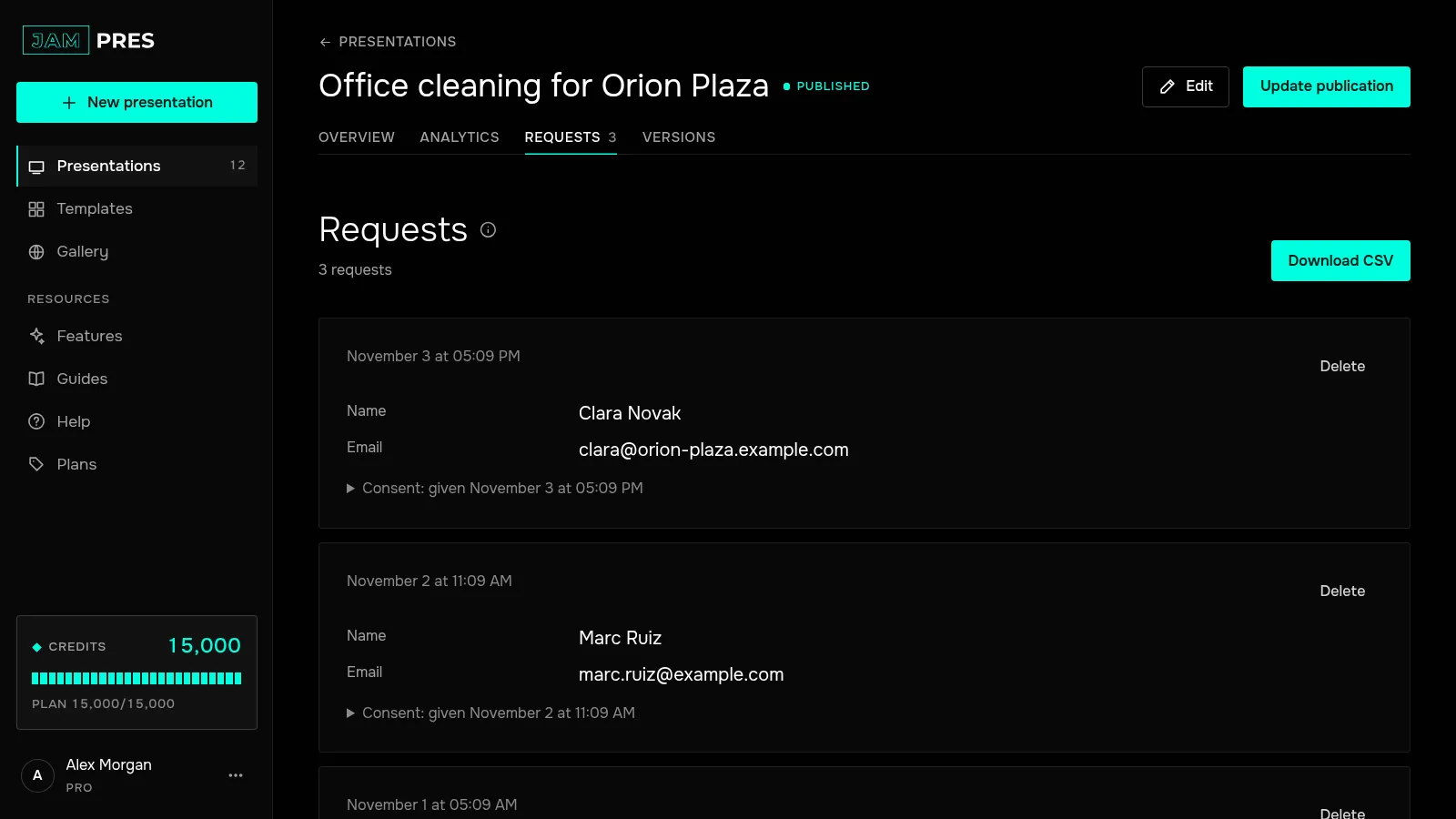
On the presentation page, open the “Requests” tab. You also get there from the “Requests →” link in the form panel and the “All requests” button in a request email.
Click “Download CSV”
The button sits next to the “Requests” heading and appears once there is at least one request. The file covers every form in the presentation, one row per request. The page shows the latest 500 requests; the file holds up to 10,000.
Open the file in a spreadsheet
The columns go like this:
- created_at — when the request arrived, in UTC;
- the form fields, by their labels; if you changed the form, fields from all its versions are included;
- consent_given_at and consent_text — when consent was given and its text;
- marketing_consent and marketing_text — the answer to the newsletter checkbox and its text;
- form_id, form_version and deck_version — which form, and the form and publication versions.
The file is UTF-8, separated by commas. If your spreadsheet puts everything into one column, open the file through data import and choose the comma. An answer that starts with “=”, “+”, “-” or “@” is exported with an apostrophe in front, so the spreadsheet doesn't treat it as a formula. A phone number like +44… becomes '+44….
Poll votes aren't in the file: their results are on the same tab. To get all your account data in one file, see exporting your data.