The import takes the template from your sample slides one to one: block positions, type sizes, colours, shapes and illustrations. It's a Pro plan feature.
Prepare the file
You need a .pptx or .potx up to 25 MB with 16:9 slides. If the size is different, in PowerPoint choose Design → Slide Size → Widescreen (16:9). Google Slides and Canva export to PPTX too.
Upload it
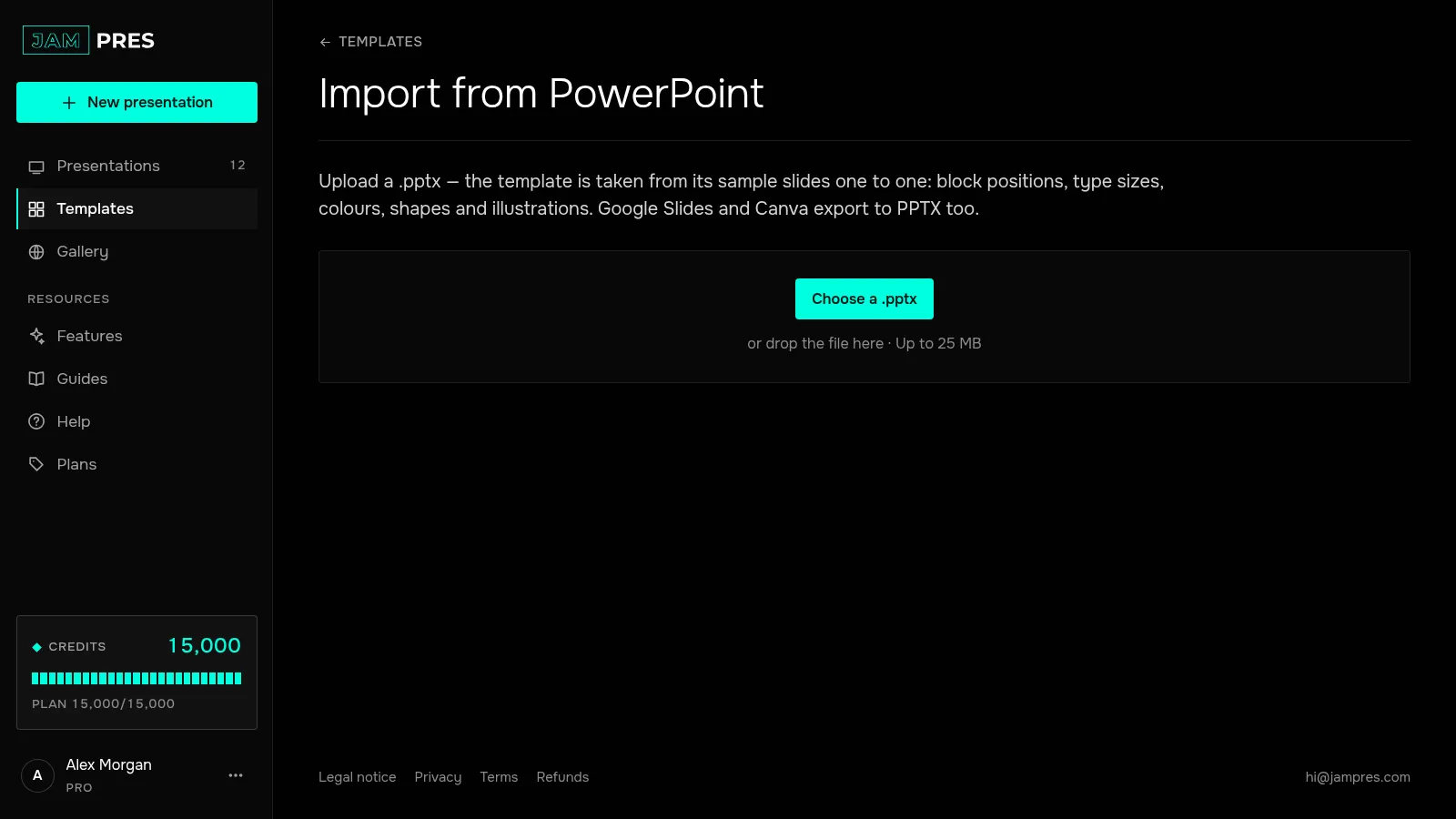
Open “Templates” in the left panel and press “Import from PowerPoint”. In the editor, “From PPTX” in the “Template” window does the same. Press “Choose a .pptx” or drop the file in.
Run the markup
Press “Run the markup” — the price in credits is on the button, and it takes about 30 seconds. The model finds the roles on every slide: heading, text, photo, decor, footers. If it fails, the credits come back.
Check the markup
For each slide, pick its role or “Not a sample — skip”. For pictures, choose “Template decor”, “Photo placeholder” or “Leave out”; for small text, a footer option or “Service text — leave out”. The “This is how slides will look” block shows the result; after changes, press “Update preview”.
Create the template
Check the “Template name” and press “Create template”. Its editor opens, and the template appears in “Templates” → “Yours”, in the style step when you create a presentation, and in the editor's “Template” window.
The text of the sample slides doesn't go into the template — only positions and type sizes. If the file has no slides, only masters and layouts, JamPres takes colours, fonts and block positions from them.