When you share a publication link in a messenger or on social media, a card appears next to it: an image, a title and a description. JamPres builds it for you — there's nothing to prepare.
Where the image and text come from
- Image — from the first slide: its background or photo, the title and subtitle in the template's fonts and colours. It's not a screenshot but a card in the style of the slide.
- Title — the presentation title.
- Description — the first paragraph of text in the presentation.
- On Free the image carries “Made with JamPres”; from Base it doesn't.
If the link shows the website, the image is built from the website's first section.
How to change it for slides
Edit the first slide, the presentation title or the first paragraph, then click “Update publication”. The card updates together with the page.
How to change it for a website
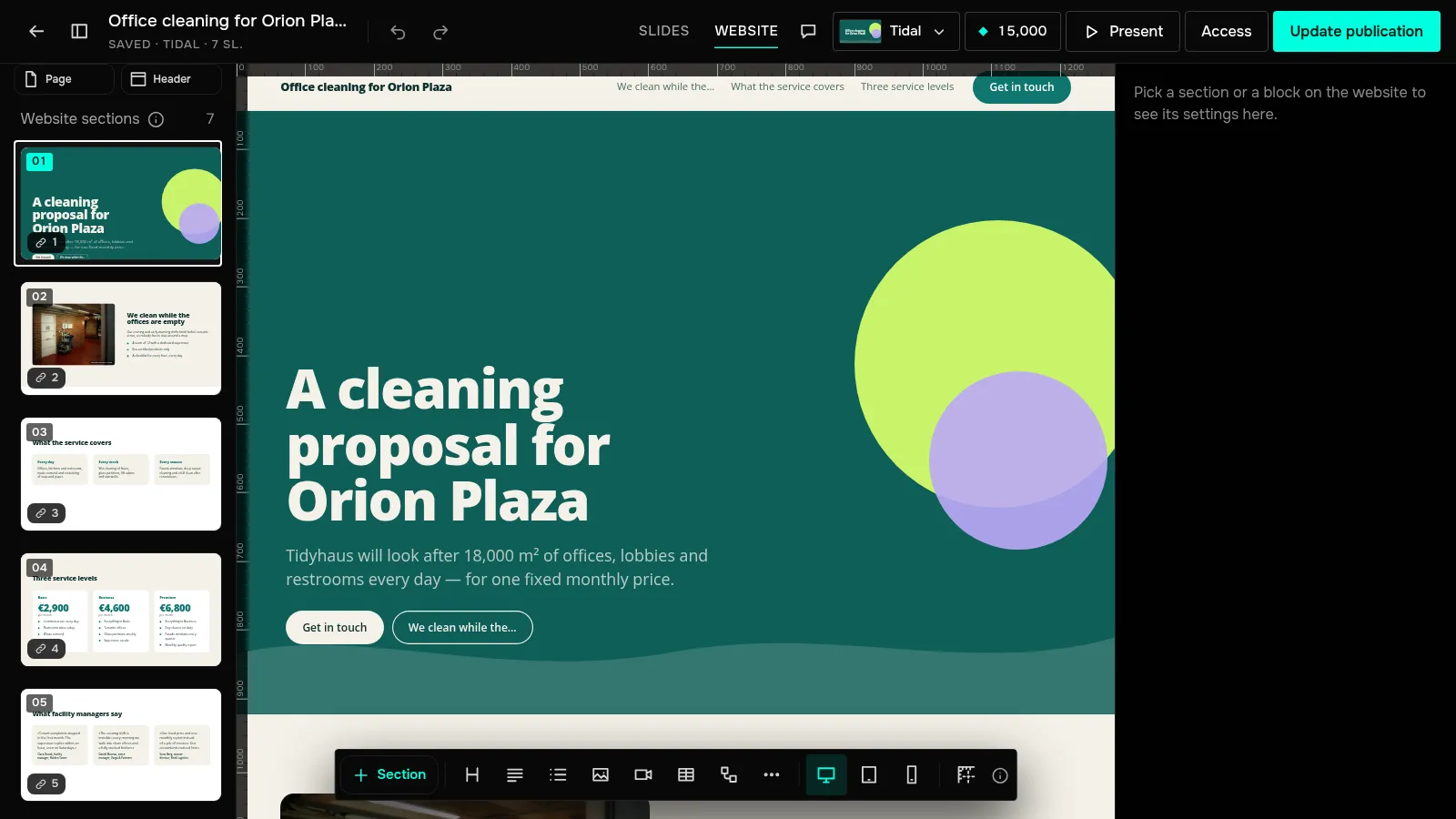
In the editor, open the “Website” view and click “Page” above the sections. The top of the panel shows how the link will look. Below it:
- “Title in the tab and in search”;
- “Description for search and links”;
- “Link preview image” — “Hero” or “Own image”. Your own image is shown as it is, without any text.
These settings apply when the link shows the website: on the presentation page set “How to show it” to “Website”. Then click “Update publication”.
Locked pages
If a page is locked with a password or an email gate, the card has no slide and no description — only a lock and “This presentation is password-protected” or “The author asks you to introduce yourself”. Nothing from a locked page gets into the preview.