A link to a publication looks like this: jampres.com/p/name/presentation-address. The name is shared by all your publications and is random when you sign up. The second part is built from the presentation title at the first publication: “Quarterly report” becomes quarterly-report. If you already have a publication at that address, a few characters are added.
Open “Publication address”
In the dashboard, click your name in the left panel — “Account” opens on the “Profile” page. Find “Publication address” and click “Change”. The same field is on the page of a published presentation: click “More” in the “Publication” panel.
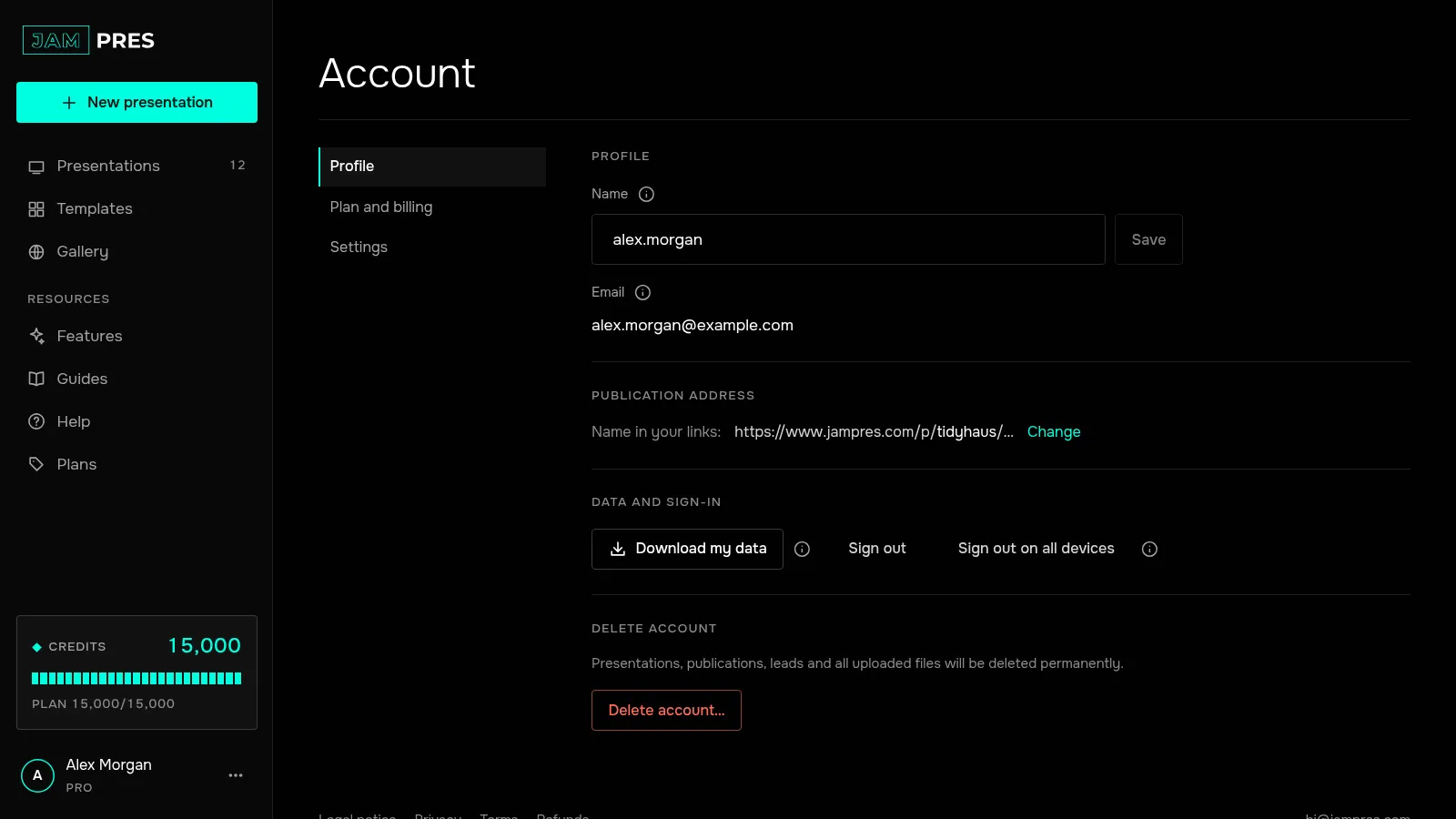
Enter a new name
Use 3 to 32 characters: Latin letters, digits and hyphens. A hyphen can't come first, last or twice in a row. Taken and reserved names won't work — the form will tell you. Click “Save”.
Only the account owner can change the name: collaborators don't have this field.
Check your links
The new name appears in the addresses of all your publications at once. Old links keep working: they redirect to the new address. The previous name stays yours, so nobody else can take it. That's why the number of changes is limited: if the name has been changed too many times, write to us and we'll help.
The second part of the address doesn't change, even if you rename the presentation, update the publication, or unpublish it and publish again. Your own domain instead of jampres.com is coming soon on Pro.