A website from your presentation is available on every plan. It's the same publication and the same link, shown as one page with a header, a menu and sections. On Free the page carries the JamPres badge at the bottom.
Open the “Website” view
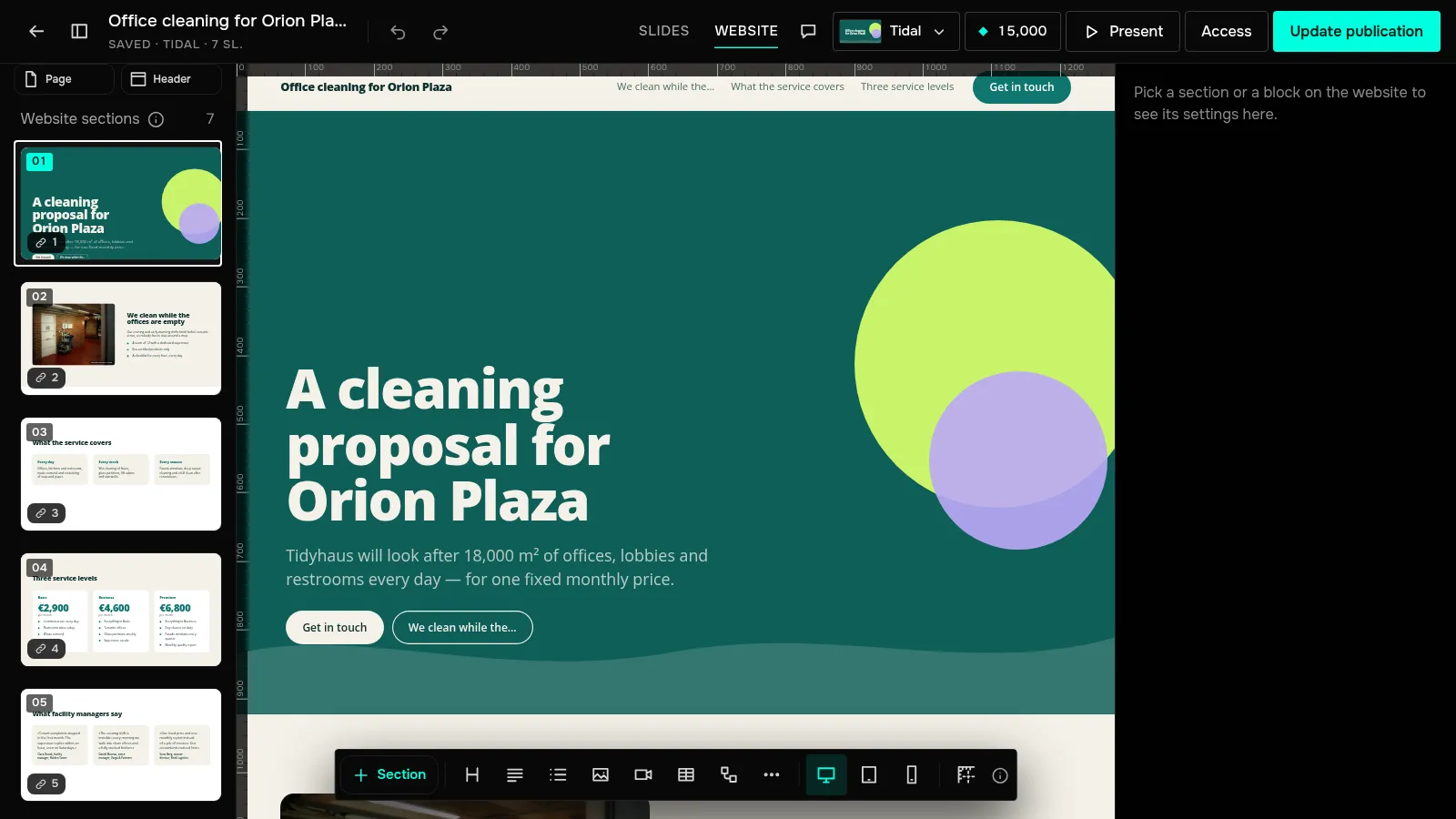
In the editor header, switch from “Slides” to “Website”. The website is built from the same slides: each slide becomes a section, and the agenda becomes the header menu. Nothing needs rewriting.
Adjust the sections
Select a section or a block and its settings appear on the right. What you change on the website stays on the website; everything else follows the slide and changes with it. To drop a section, use “Hide on the website” — it stays in the slides.
“Add section” inserts a new section (a “Lead form”, for example), a slide “From the presentation”, or a “Website only” section: “FAQ”, “Logos” or “Pricing”.
Check it on a phone
In the bottom bar, switch the screen width: “Desktop”, “Tablet” or “Phone”. The website adapts to the width on its own, and a section with a free canvas can be arranged separately for each device.
Show the website at your link
Click “Publish” or “Update publication”. Then, on the presentation page, in the “Publication” panel, set “How to show it” to “Website”. The view changes at once and the link stays the same.
Add a button to the slides
In the “Website” view, click “Page” above the sections and turn on “Button to the slides”. Website visitors see “View as slides”, slide viewers see “View as website”. The same panel holds the title, description and image for the link — see the link preview.
Website edits and “Page” settings reach the link after “Update publication”.