The owner of a presentation or a collaborator with the “Can edit” role can publish it. If you made a draft without signing in, save it to your dashboard first.
Click “Publish”
The button is in the editor header and on the presentation page. On the first publication the page address is built from the presentation title. From the editor you land on the presentation page, where the link is already waiting.
Copy the link
On the right, in the “Publication” panel, you'll see the page address and two buttons: “Copy link” and “Open”. Send the link by messenger or email: it opens on a phone or a computer, and viewers need no account and no app.
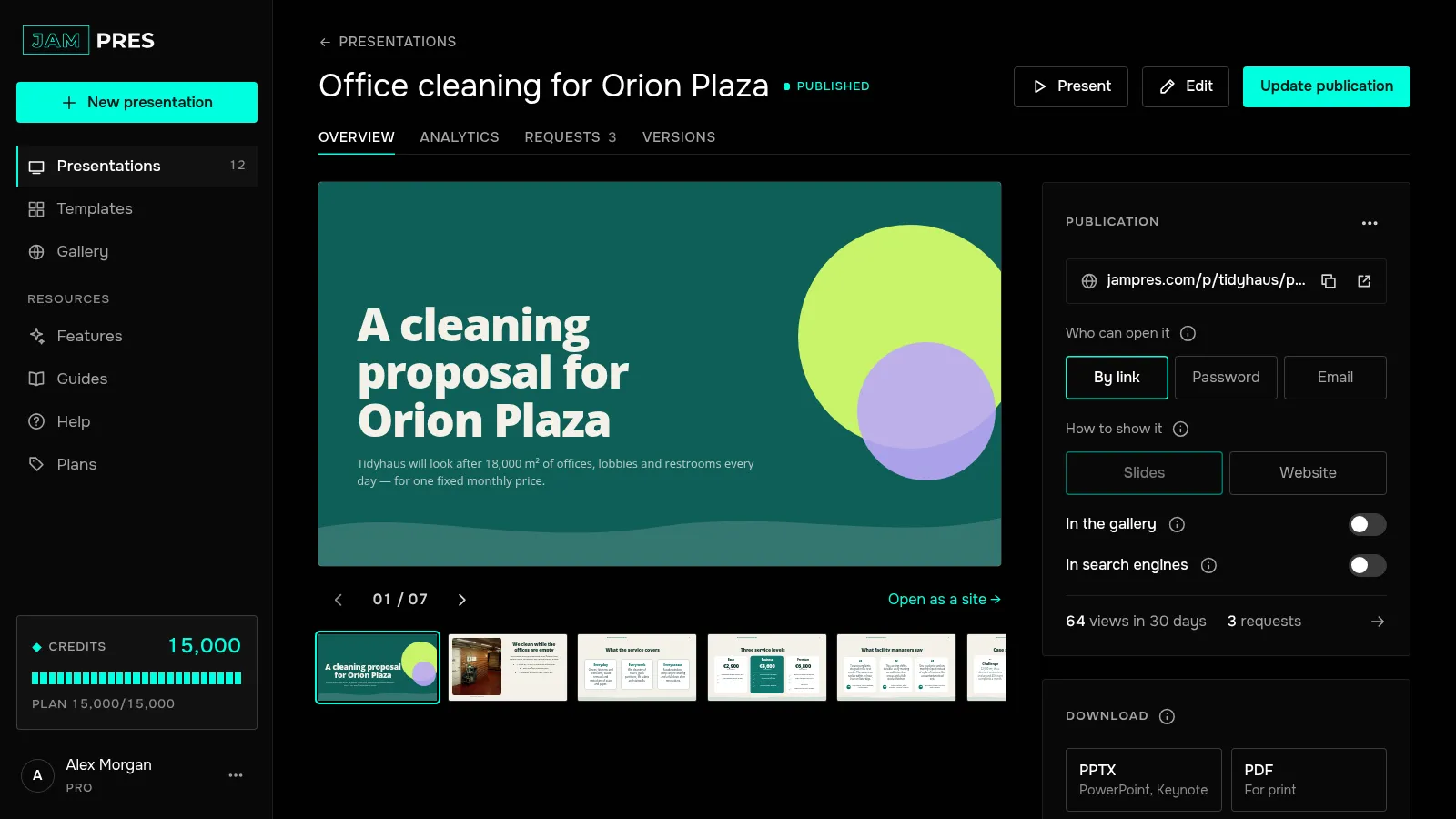
Choose who sees it and how
In the same panel:
- “Who can open it” — “By link”, “Password” or “Email”; see password and email access;
- “How to show it” — “Slides” or “Website”; see turning a presentation into a website;
- “In the gallery” and “In search engines” — off by default, and only the owner can turn them on.
Update after edits
Edits in the editor don't reach the page on their own: the link shows the version you published. To show the new one, click “Update publication” — the link stays the same. Every publication is saved under the “Versions” tab, which keeps the last 20. Speaker notes never appear on the page.
Unpublish if you need to
In the “Publication” panel, click “More” → “Unpublish”. The link stops working for everyone you shared it with, and the presentation leaves the gallery and search. “Publish” brings the page back at the same address with the same access; turn the gallery and search back on if you want them.