Only the text is taken from the file: formatting, images and fonts don't come along, and the template gives the slides their look. Bullet points from the document stay on the slides.
Open a new presentation
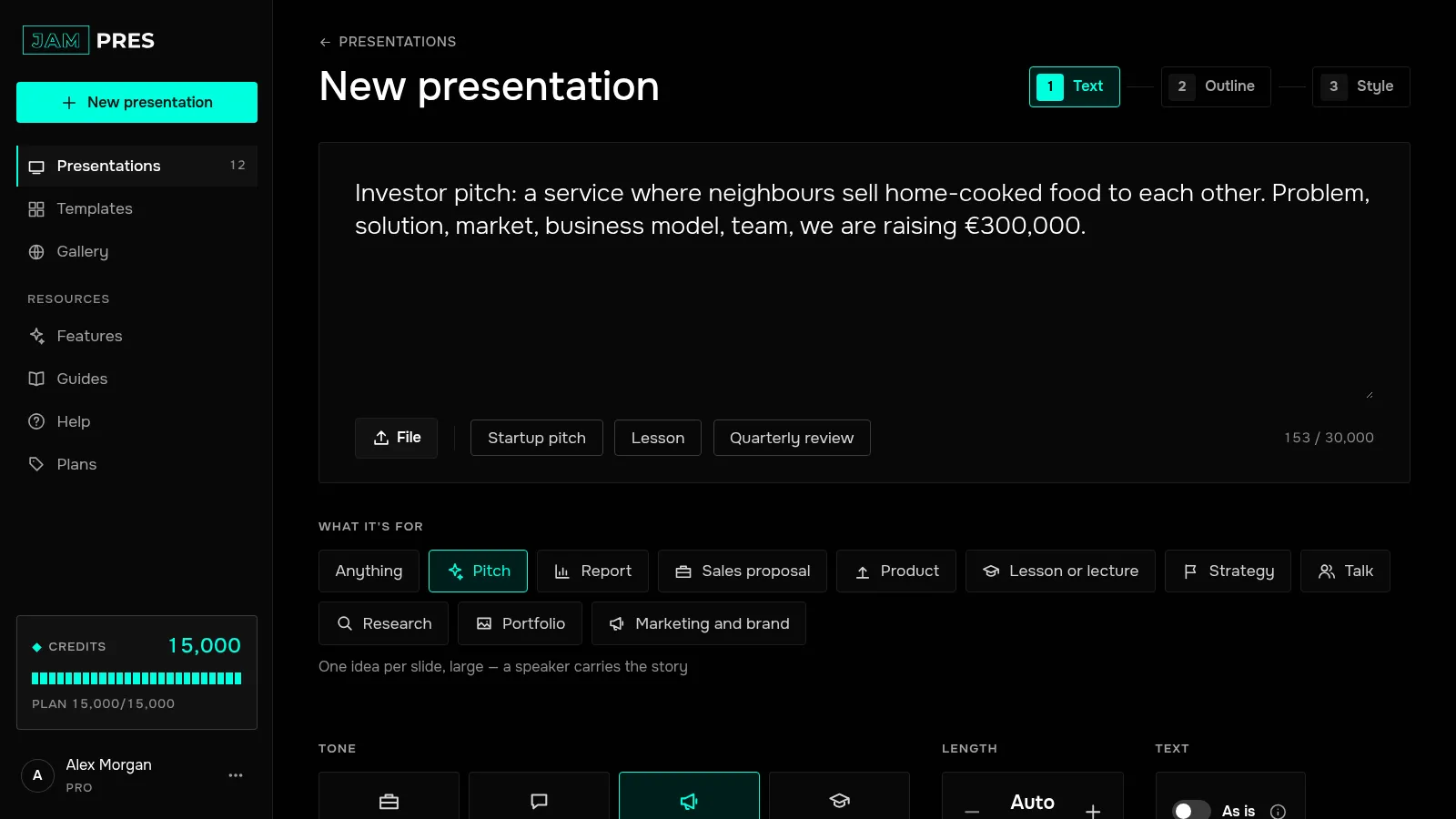
In your dashboard, press “New presentation” in the left panel; without signing in, open a new presentation. The file is read right in your browser, and only the text goes to the server.
Upload the file
In the bar under the text field, press “File” and choose a document: PDF or .pptx up to 100 MB, or .docx, .txt or .md up to 5 MB. The text appears in the field, and you can edit it. If it's longer than 30,000 characters, the first 30,000 are used, and for a PDF a note says which pages went in. A PDF's table of contents, headers, footers and page numbers stay out of the text.
Or paste a link
Press “Link”, paste the page address and press “Get the text”. Our server opens the page once and takes only the text: images, styling and fonts don’t come along. The page has to open without signing in. If the site won’t share it, or the text only appears in a browser, copy the text and paste it into the field.
Build the presentation
Press “Build outline” — from here it works just like pasted text: the outline, the style and the build.
If your text is already split into slides, in the dashboard you can switch on “As is” and press “Lay out”. Every word stays as written; the model only lays the text out on slides, and a new slide starts at a “---” or “Slide N” line. This mode builds the slides straight away and costs the same as a regular build.
A scan without text and slides made of images can’t be read: paste the text into the field. Remove the password from a protected PDF, re-save old .doc and .ppt files as .docx and .pptx, and download a Google Doc as .docx. From a .pptx we take the slide text, without hidden slides or speaker notes, and slides are separated by a “---” line, so “As is” keeps their order. Labels and numbers in separate text boxes are taken when they sit on one line; on diagrams where the pairs can’t be told, they’re left out. To carry over the look of the file itself, make it a template on Pro.