A template sets the colours, fonts, where blocks sit on each slide and how the presentation looks as a website. Every built-in template has a light and a dark variant, and all of them are available on every plan.
Where to pick one
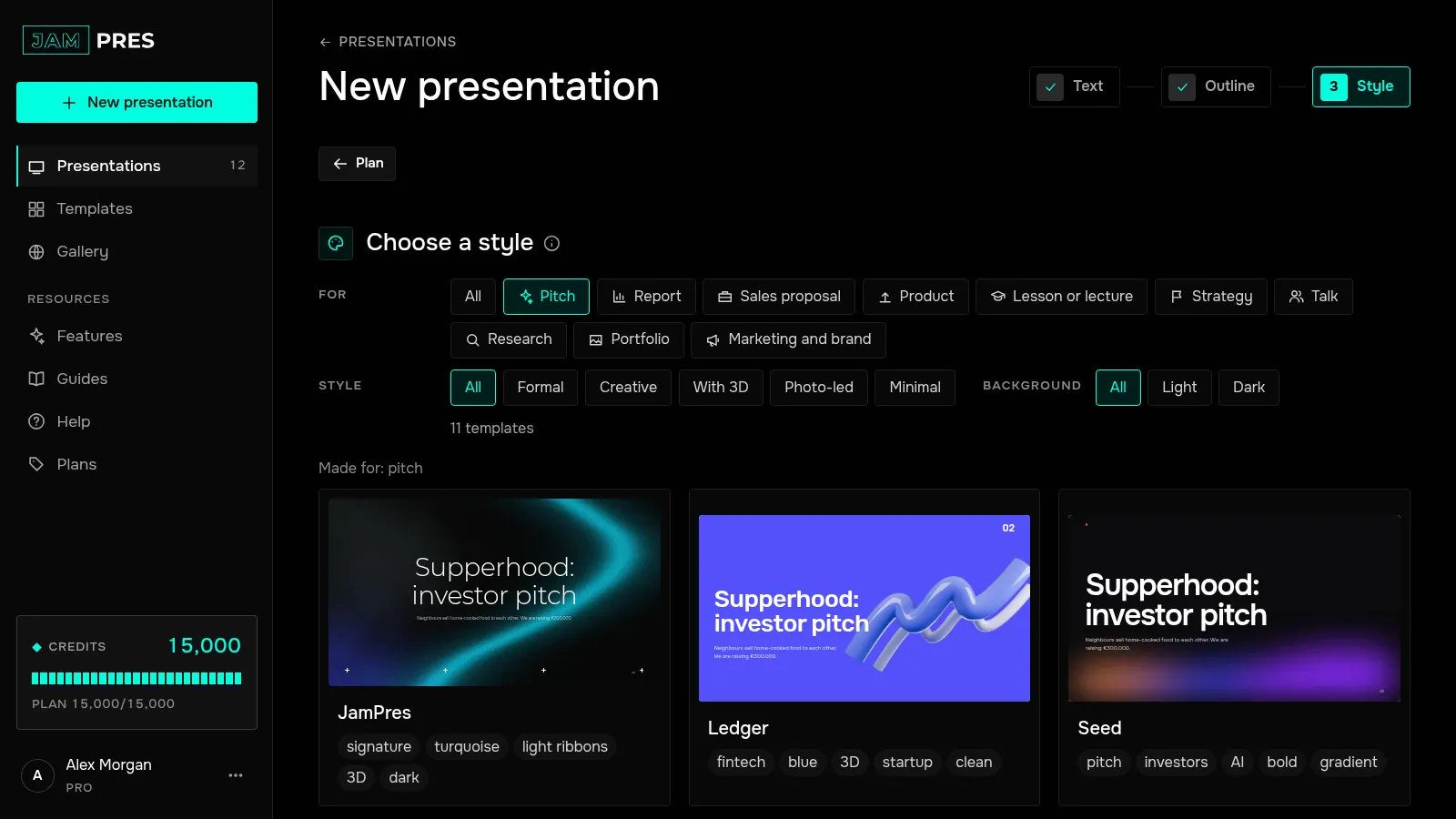
- While creating. At the “Choose a style” step, templates are live covers with your presentation's title. If you chose what the presentation is for in the first step, a “Made for: …” group comes first, then “Other templates”.
- From a blank page. On the new presentation screen in your dashboard, the “Or start blank” block creates an empty presentation in the template you pick — you build it from the template's slides.
- In the catalogue on the site. Every template on the templates page has an example. A button like “Create in Swiss” opens presentation creation with that template.
How to choose
Start with the job. A pitch or a talk is carried by a speaker, so slides need short, large points: for a pitch, Prism, Arena, Bento and Swiss are offered first. Reports and research are read without a speaker: for them, Dashboard, Swiss and Lab come first. There are ready-made selections too, such as pitch deck templates and report templates.
Look at the covers: they carry your title, so you see straight away how it sits on the title slide.
If you guessed wrong
You can change the template in the editor at any time, with no credits: text and images stay, and anything that no longer fits moves to a new slide. See How to change the template. On Pro you can also upload your own template from PowerPoint.