Open the settings
In the dashboard, click your name in the left panel to open “Account”, then go to “Settings”.
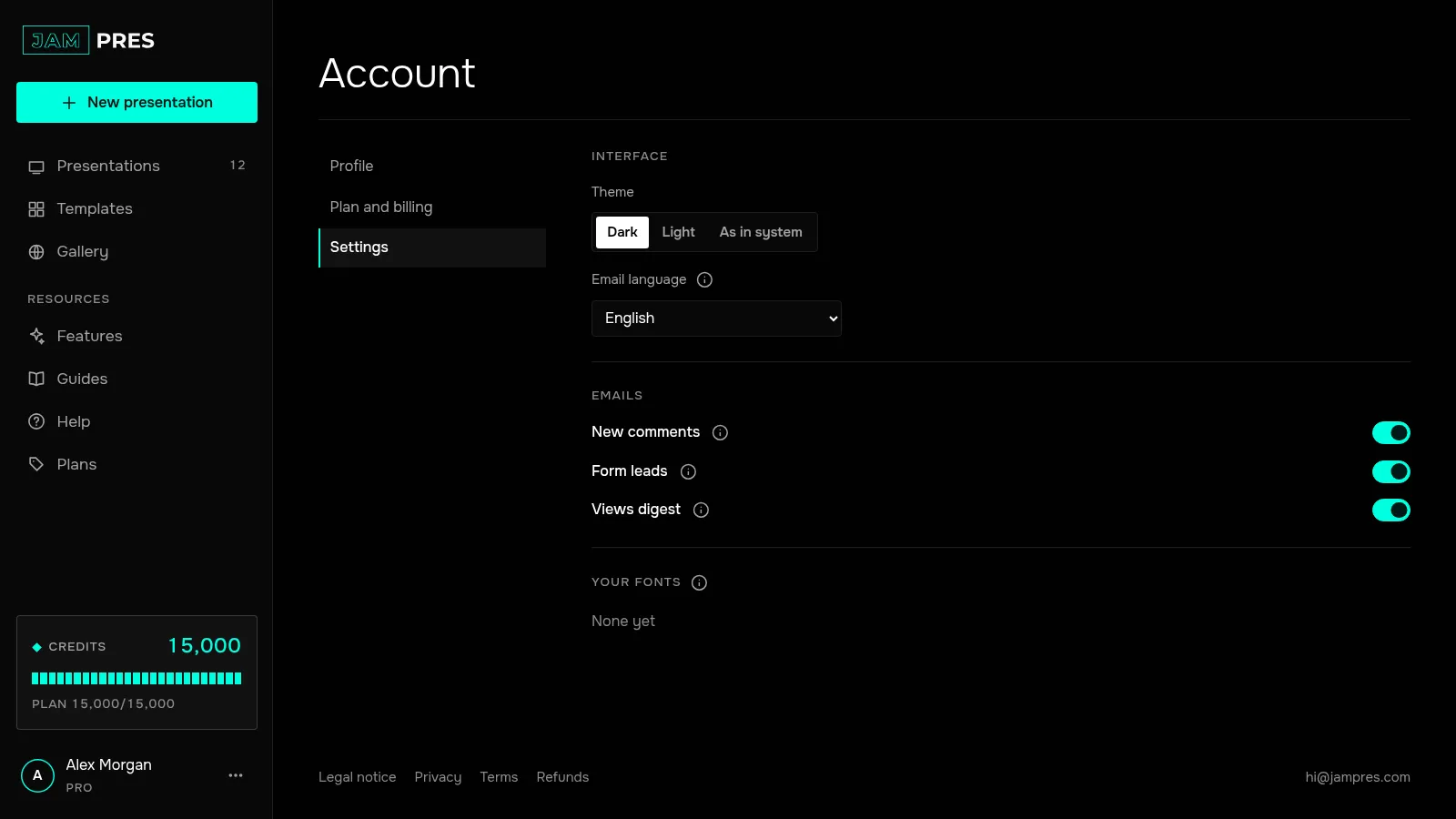
Choose a theme
In the “Interface” section, on the “Theme” row, click “Dark”, “Light” or “As in system”. The theme changes how the dashboard and the editor look. How your presentations look is set by their template — the interface theme doesn't touch it.
Choose the email language
The “Email language” list has six languages: English, Русский, Español, Deutsch, Français and Svenska. Emails about leads, views and comments come in the one you pick, and so do the confirmations of a cancelled subscription or a withdrawal. Your choice is saved right away.
The interface language is changed separately: click the menu button next to your name in the left panel and choose “Language”.
Turn emails on or off
The “Emails” section has three switches:
- “New comments” — the first email right away, the rest as a digest at most every 10 minutes;
- “Form leads” — an email about every new lead from a published page;
- “Views digest” — an email when your presentation is opened. More in emails about views.
You can also turn emails off with the “Unsubscribe from … emails” link in the email itself, and turn them back on here. Leads and analytics stay in the dashboard even with emails off. Sign-in emails always arrive.
How to change the theme, language and emails
In “Account” → “Settings” you choose the dashboard theme, the email language and which emails you get. The interface language is in the account menu.
Was this article helpful?
Didn't find the answer?
Ask the JamAI assistant in the chat on this site or email us — we reply within one business day.