Open the “Image” window
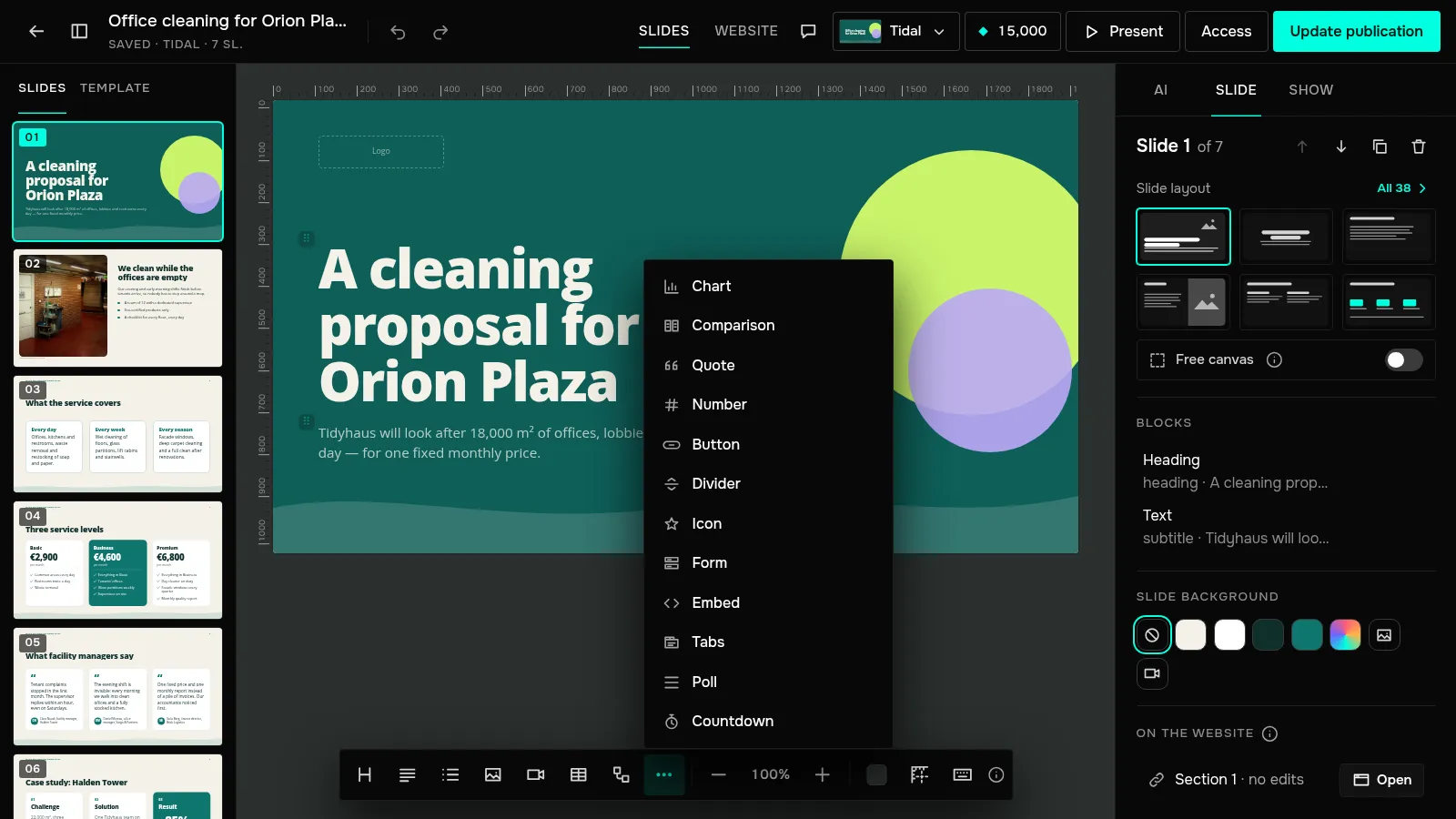
Select the slide and click “Image” on the editor's bottom bar. The “Stock” tab gives you two ways in:
- “Upload a file” — JPEG, PNG, WebP, AVIF or GIF up to 10 MB;
- search Pexels stock photos — free on every plan; the author's name is stored with the image and shown on the slide.
On the “AI” tab a model draws the image from your description, for credits — see AI images. A screenshot or an image copied from the browser can simply be pasted onto the slide with Ctrl+V.
Adjust the frame
Select the image and the “Block” tab shows “Replace image” and “Mask”. “Fill” crops the photo to the frame, “Fit” shows it whole. With “Fill”, “Crop on the slide” lets you choose the visible part right on the slide.
Add a video
Click “Video” on the bottom bar. Paste a YouTube or Vimeo link and click “Insert” — or search for a clip on Pexels stock. Viewers first see a poster frame; the YouTube or Vimeo player loads only when they press ▶. PDF and PPTX get the poster frame with a link to the clip.
Put an image or video in the background
Deselect all blocks: the “Slide” tab has a “Slide background” section. Click “Image” or “Video”. A background video comes from stock only and plays muted on a loop in the presentation, the publication and the website, which suits a first screen. “Dimming” keeps light text on top readable.
To show a map, a board or a document, use the “Embed” block from the “More blocks” menu. The service's player also loads for viewers only on click.
How to add an image or video to a slide
Click “Image” or “Video” on the editor's bottom bar. Upload an image, take one from stock or have AI draw it; add a video by its YouTube or Vimeo link.
Was this article helpful?
Didn't find the answer?
Ask the JamAI assistant in the chat on this site or email us — we reply within one business day.