Insert the block
On the editor's bottom bar, open “More blocks” and choose “Tabs”, “Poll” or “Countdown”. You can also switch the slide layout to “Tabs”, “Poll” or “Countdown” and the starter block appears by itself. Select the block: its settings are in the “Block” tab on the right.
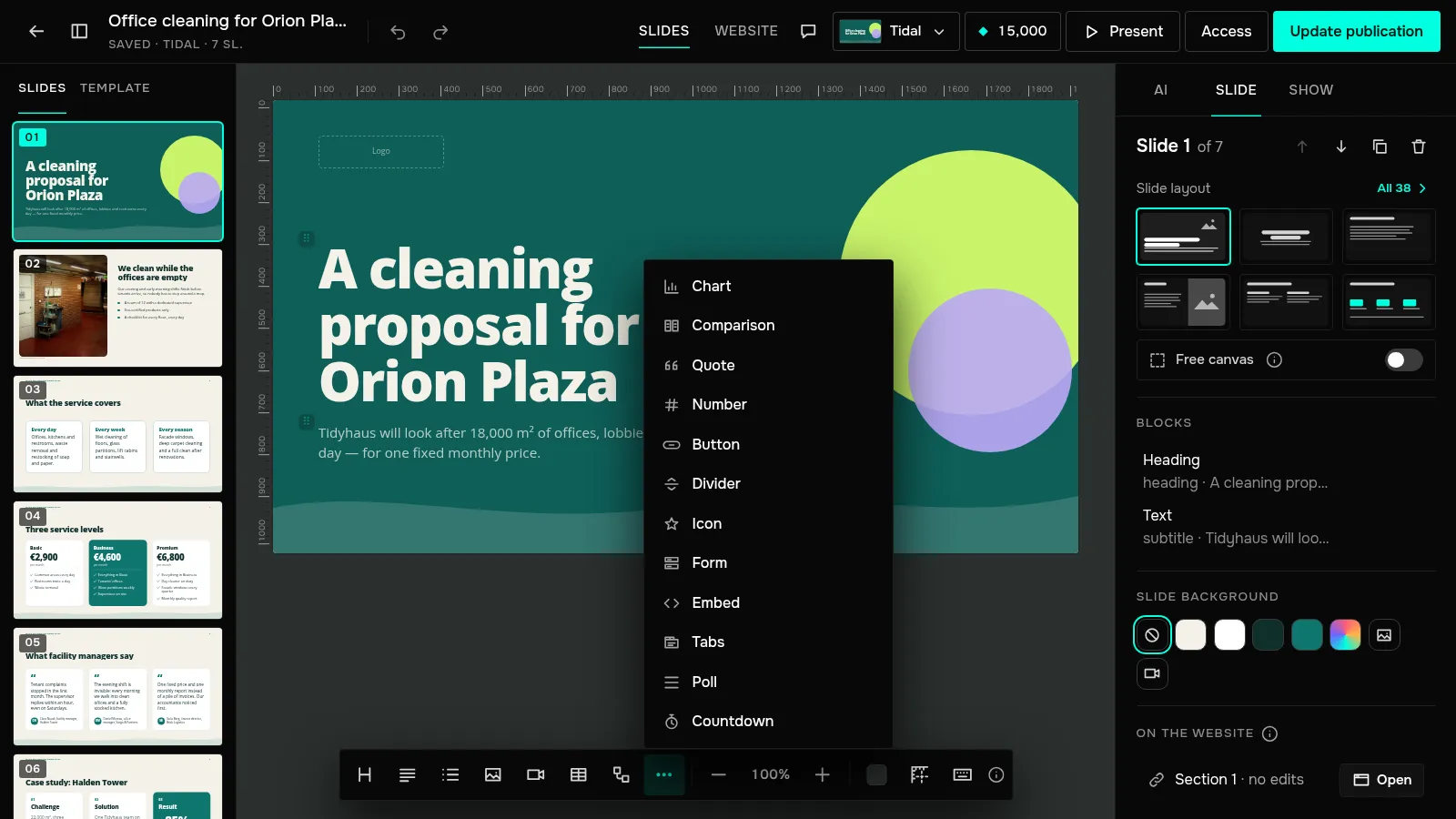
Set up tabs
Under “Kind”, choose “Tabs” or “Accordion”. Under “Items”, fill in the title and text of each item; “+ item” and “− item” change their number, from two to six. “Open first” is the item viewers see first; they open the others themselves.
Set up a poll
Under “Question and answers”, write the question if it isn't in the heading, and two to six answers. Under “Results for the viewer”, choose “Show after voting” or “Don't show”.
Votes are taken by the published page, without cookies: a viewer picks one answer and can change their choice. The totals are on the presentation's “Requests” tab, where you can also reset them. When you present from your dashboard with “Present”, the poll on the slide shows the totals live.
A poll collects answers just like a form, so it takes votes from the Base plan. On Free the “Poll” item in the menu carries a “BASE” mark.
Set up a countdown
Under “Event”, set the date and time in your time zone: a viewer in another zone sees the countdown to the same moment. The countdown shows days, hours, minutes and seconds. Under “When time is up”, write the text that replaces the countdown after the event; leave it empty and the countdown shows zeros.
In a PowerPoint file all three blocks are static, and tabs are fully expanded so no text is lost.
How to add tabs, a poll or a countdown to a slide
On the bottom bar, open “More blocks” and choose “Tabs”, “Poll” or “Countdown”. Tabs and countdowns work on any plan; polls take votes from the Base plan.
Was this article helpful?
Didn't find the answer?
Ask the JamAI assistant in the chat on this site or email us — we reply within one business day.