Invite someone
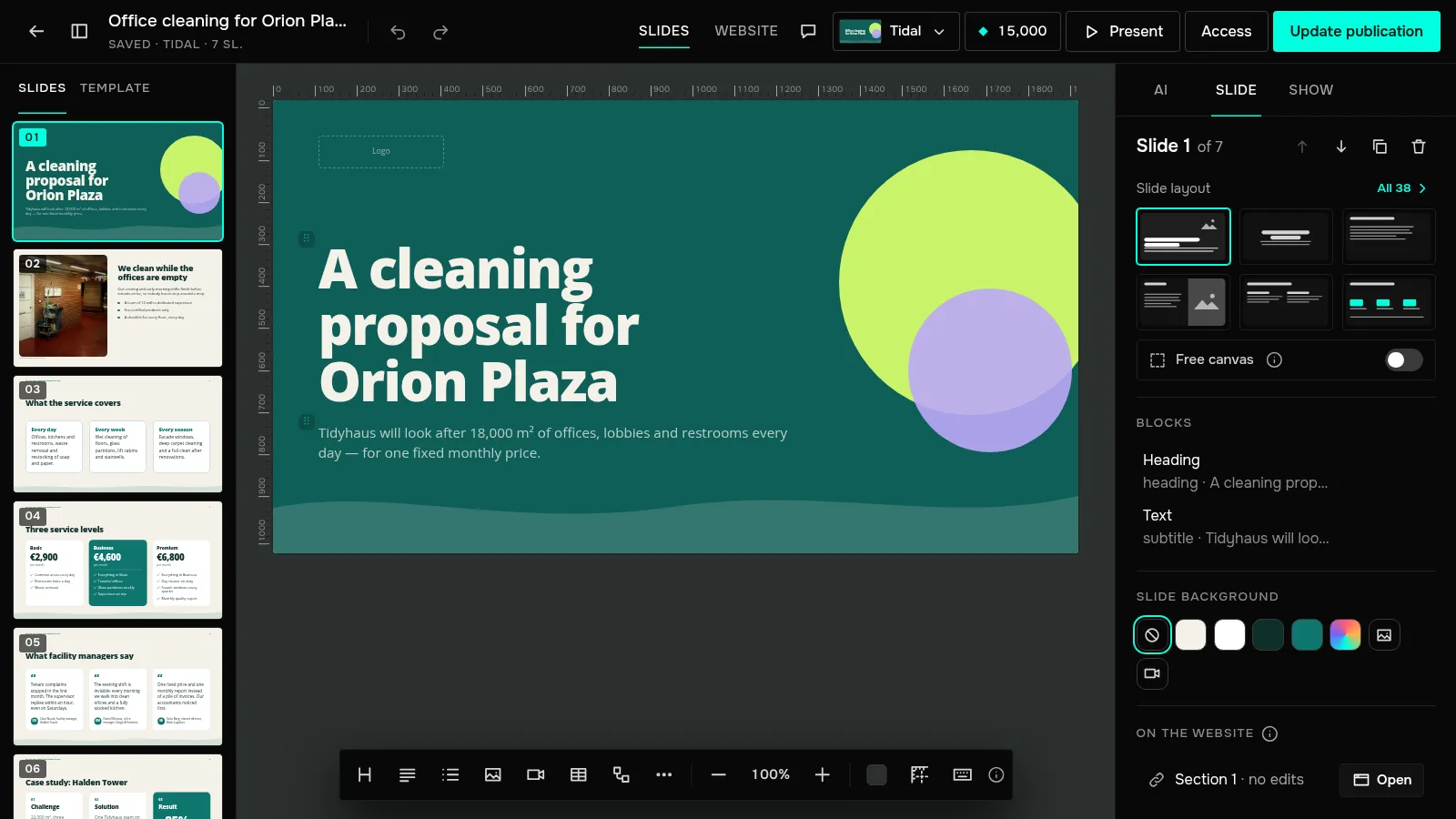
In the editor header, click “Access”. Enter an email, choose a role and click “Invite”:
- “Can edit” — changes slides with you and can publish the presentation;
- “Can comment” — sees the presentation and writes comments;
- “Can view” — only looks.
The owner of the presentation sends invitations. You can invite as many commenters and viewers as you need, on any plan. Who can edit with you: on Free no one, on Base one person, on Pro four, on Enterprise as many as you need. We count distinct people across all your presentations, so one co-author on two presentations takes one seat.
After you move to a lower plan, extra co-authors become commenters; those invited first keep editing. Nothing is lost: on a higher plan they can edit again.
Let them sign in
The invitee gets an email with an “Open the presentation” button. They need to sign in with the address the invitation went to: access is tied to it. You can also send the link yourself — “Copy link” in the “Access” window. Change a role in the list there; the cross next to a person removes their access.
Edit together
Co-authors' edits appear for you right away, you see their cursors on the slide and who is in the presentation in the header. Everyone pays for AI edits and images with their own credits: a co-author spends theirs, not the owner's.
Leave a comment
Click the “Comments” icon in the header and the panel opens on the right. A comment goes to the current slide, or to the selected block if one is selected. Type it and click “Send”.
A block with open comments gets a badge with their number; clicking it opens the panel on that thread. Each thread has “Reply” and a “Resolve” tick. The “All slides and resolved” checkbox shows comments across the whole presentation.
The owner gets an email about a new comment; a reply also goes to the author of the thread. When several comments come in a row, the ones within the next 10 minutes arrive as one summary.
How to collaborate on a presentation and leave comments
Click “Access” in the editor header and invite people by email to edit, comment or view. Comments are included on every plan, co-authors start with Base.
Was this article helpful?
Didn't find the answer?
Ask the JamAI assistant in the chat on this site or email us — we reply within one business day.