Open the slide
In the editor, click the slide in the rail on the left. The “Slide” tab opens on the right. If a block on the slide is selected, the tab is called “Block” — deselect it and the tab turns back into “Slide”.
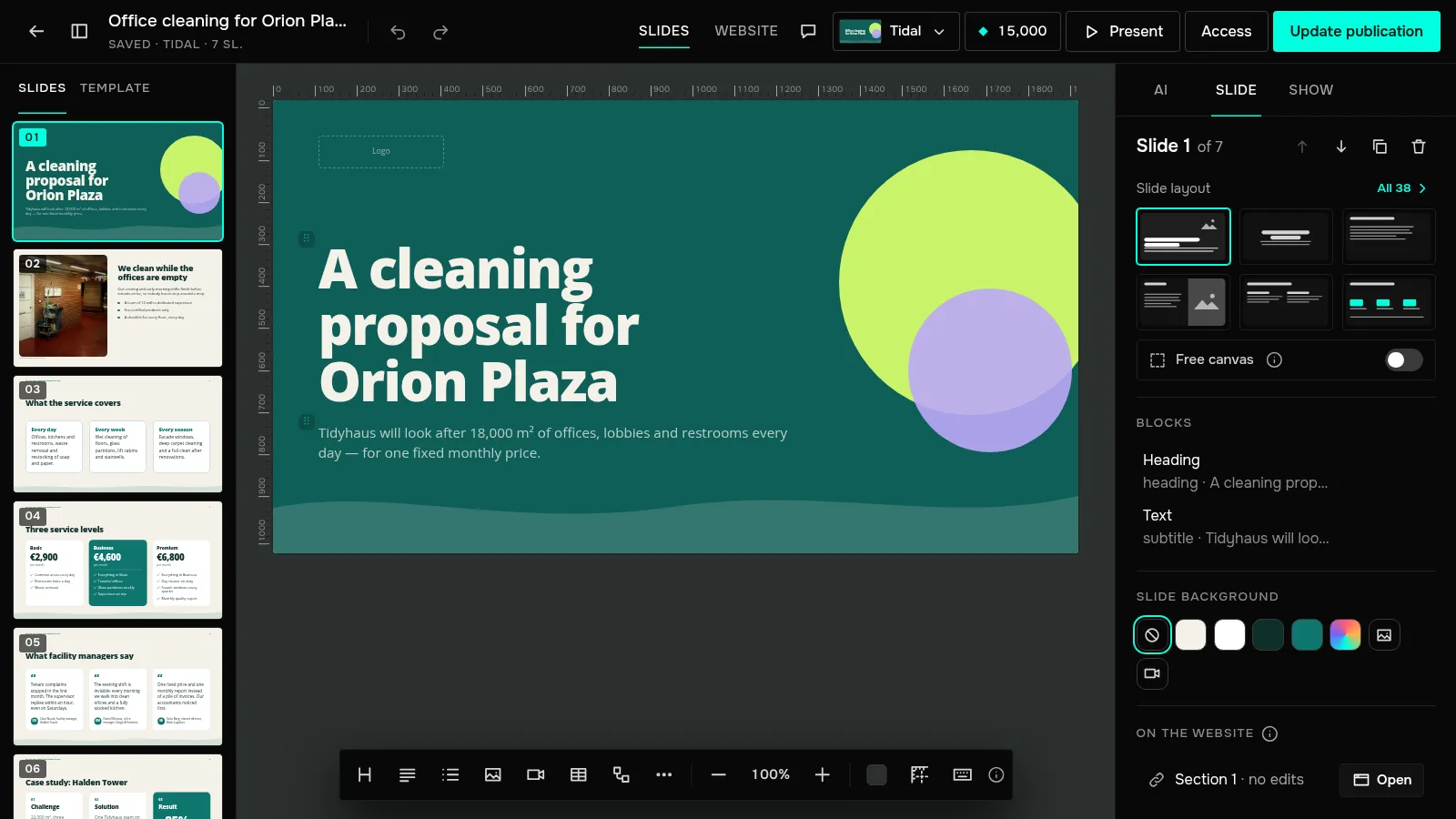
Pick a layout
“Slide layout” keeps six common layouts at hand as sketches: “Title on a background”, “Title and subtitle”, “Text only”, “Text left, image right”, “Two columns” and “Row of metrics”. Click a sketch and the slide rebuilds at once.
Every other layout is in the “All” window above the sketches: table, chart, timeline, pricing, testimonials, form, poll and more. Hover over a sketch to see what the layout is for. If the template has layouts of its own, they are in the same window, marked “— template layout”.
Check that everything is in place
Changing the layout never deletes blocks: text, images and lists move into the places of the new layout. If the layout is built around a main block — a table, diagram, chart, comparison, metric, quote, form, poll, tabs or countdown — and the slide doesn't have one, the editor adds a starter block.
If there are more blocks than places, a warning under the sketches says that some blocks aren't visible, and the “Blocks” list marks them “doesn't fit”. Pick another layout or remove the extra blocks. Changed your mind? Ctrl+Z brings the previous layout back.
To put a block where the template doesn't, turn on “Free canvas” in the “Slide” tab. How it differs from a layout is explained in Layout and canvas.
How to change a slide layout
Select the slide and, in the right panel under “Slide layout”, click another layout. Text and images stay — only their arrangement changes.
Was this article helpful?
Didn't find the answer?
Ask the JamAI assistant in the chat on this site or email us — we reply within one business day.